
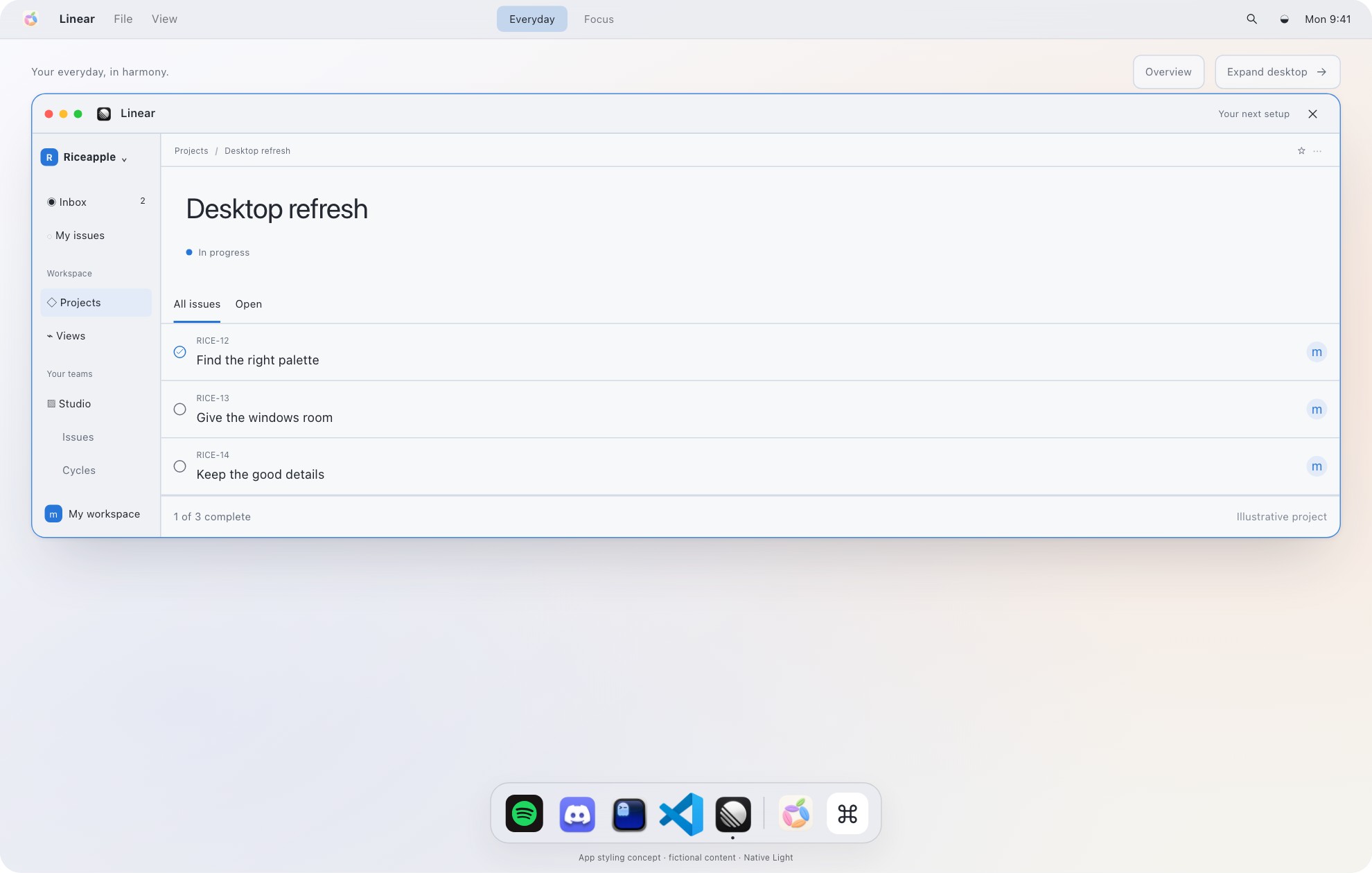
From the Riceapple playground: real preview components, sample content. This is visual inspiration, not a screenshot of a modified Linear installation or the exact recipe below.
View full-size preview (opens in a new tab) · Explore the app previews#F7F3EC#292723#EAE4D9#292723#53674D#FFFFFFAn original Riceapple editorial palette, not an official Linear preset or a tested import string. Use these as color-picker starting points; inspect the result in your own workspace.
What you need before ricing Linear
Use your existing Linear account and open the app or website. This guide follows Linear’s public documentation, checked September 12, 2026; it does not claim a hands-on test in your workspace. Before changing anything, note your current theme and save its custom color string if one is available. A quick screenshot gives you a visual reference too.
Decide what should match. For a coordinated Mac, we would match the background temperature and one accent across apps, while leaving room for each app’s own interface. A pale green desktop does not need pale green text everywhere. Keep the issue titles easy to scan.
How to rice Linear with built-in themes
Linear’s Preferences documentation places customization under Interface and theme. Its current docs confirm presets, custom themes, and an option that follows your computer’s appearance. The official Custom Themes announcement also describes sharing a theme as a single line of colors.
Sources: Linear Preferences documentation · Linear Custom Themes announcement, December 2020.
Open your preferences
Open Settings, then Preferences, and find Interface and theme. Start by noting whether your current choice is a preset, a custom theme, or the system-following option.
Choose a starting point
Try a light or dark preset first. If it already suits the rest of your desktop, keep it and move on to the layout. There is no benefit in replacing a good default just to make the setup more complicated.
Customize the colors
Choose the custom theme option. Linear’s official announcement describes background, text, and accent colors as inputs from which the interface generates related shades. Change one role at a time so you can see what it affects.
Inspect your working screens
Open your usual issue list, an issue with comments, and a menu. Check ordinary text, selected rows, labels, and controls. Judge the theme there, rather than only inside the settings preview.
Try Warm Paper: a quiet, warm palette
Warm Paper is our editorial recipe: an off-white main surface, a slightly deeper sidebar, dark ink, and a muted green accent. The six swatches above are starting colors, not a promised one-click installation. Where the editor exposes the relevant roles, use #F7F3EC for the main background, #EAE4D9 for the secondary surface, #292723 for readable dark text, and #53674D for the accent.
Keep #FFFFFF available for text on darker accent surfaces if your editor exposes that role. Do not paste the swatches into an import field and assume their display order is the required format. Use labeled controls, or begin with an existing compatible theme and adjust it.
Three ways to make the recipe yours: keep the warm surfaces and pick a blue accent; use the green accent with a cooler gray background; or keep your current dark theme and borrow only the green. Those are styling suggestions, not accessibility certifications. If a control disappears into its background, undo the last change before continuing.
Borrow a theme before building one
Linear links to Linear Style from its own Preferences documentation. The library offers click-to-copy themes, which can be a more convenient starting point than choosing every color. Look for a familiar palette name, copy its theme string, and use Linear’s custom-theme input. The library’s usage instructions describe that copy-and-paste route, though their screenshots are older.
Linear’s own December 2020 announcement also provides this Midnight example. It is a documented historical example, not a claim that we tested the current importer. Keep your previous theme first, and inspect how it looks after applying it.
Sources: Linear Custom Themes announcement, December 2020 · Linear Style theme library.
#0F0F10,#EEEFF1,#151516,#EEEFF1,#D25E65,#FFFFFFFinish the rice with a calmer working view
A nice palette cannot decide what deserves your attention. Pick a simple working set, such as issues assigned to you that are still active, and use that as the place to judge your layout. This is our suggested workflow, not a prescribed Linear setup.
Linear’s Custom Views documentation explains how to save a filtered view: add a filter to a team-specific list or board, then use the Save view icon or Option/Alt + V. You can also start from Views in the sidebar and choose New view. Give your view a useful name, such as My active work, so its purpose stays obvious.
For the visual finish, Linear’s Preferences documentation also lists font size, pointer cursors, underlined links, and desktop notification badges. Adjust only what helps you read or navigate. A theme that looks good at a glance should still feel clear when you are trying to find a comment quickly.
Sources: Linear Custom Views documentation · Linear Preferences documentation.
Reset the theme, and know where this guide stops
Return to Interface and theme and choose a preset or the system-following option to leave the custom look. If you saved an earlier color string, restore it through the custom-theme input. Make your theme reset separately from changes to saved views; you may want to keep the quieter view even if you change the colors.
This guide covers documented appearance and view controls. It does not promise arbitrary CSS, a replacement interface, or automatic changes through Riceapple. The Linear scene on our website is a fictional styling preview. Use the real app’s settings for the steps here, and our desktop playground for visual inspiration.
Sources: Linear Preferences documentation.
A few questions
Do I need a plugin to change Linear’s theme?
No plugin is needed for the built-in route described here. Linear documents presets and custom themes in its own Preferences settings.
Can Linear follow my Mac’s light or dark appearance?
Yes. Linear’s Preferences documentation includes a system-following option. Choose that if you prefer your computer’s appearance setting to determine the app’s mode.
Does this theme change my teammates’ Linear interfaces?
This guide uses your appearance preferences. It does not instruct you to change teammates’ settings. Treat shared views separately: review their scope before saving or sharing them.
Sources and scope
Researched from the sources below on September 12, 2026. The palette is our suggested starting point. Instructions are documentation-based; we haven’t claimed a hands-on test of your installed app version. Menus and availability can change.
Bring the rest of your Mac along
Use our Mac ricing guide to think through your desktop, then browse light, dark and warm setup ideas. The Riceapple playground lets you compare coordinated looks with sample windows. It does not apply a theme to Linear.