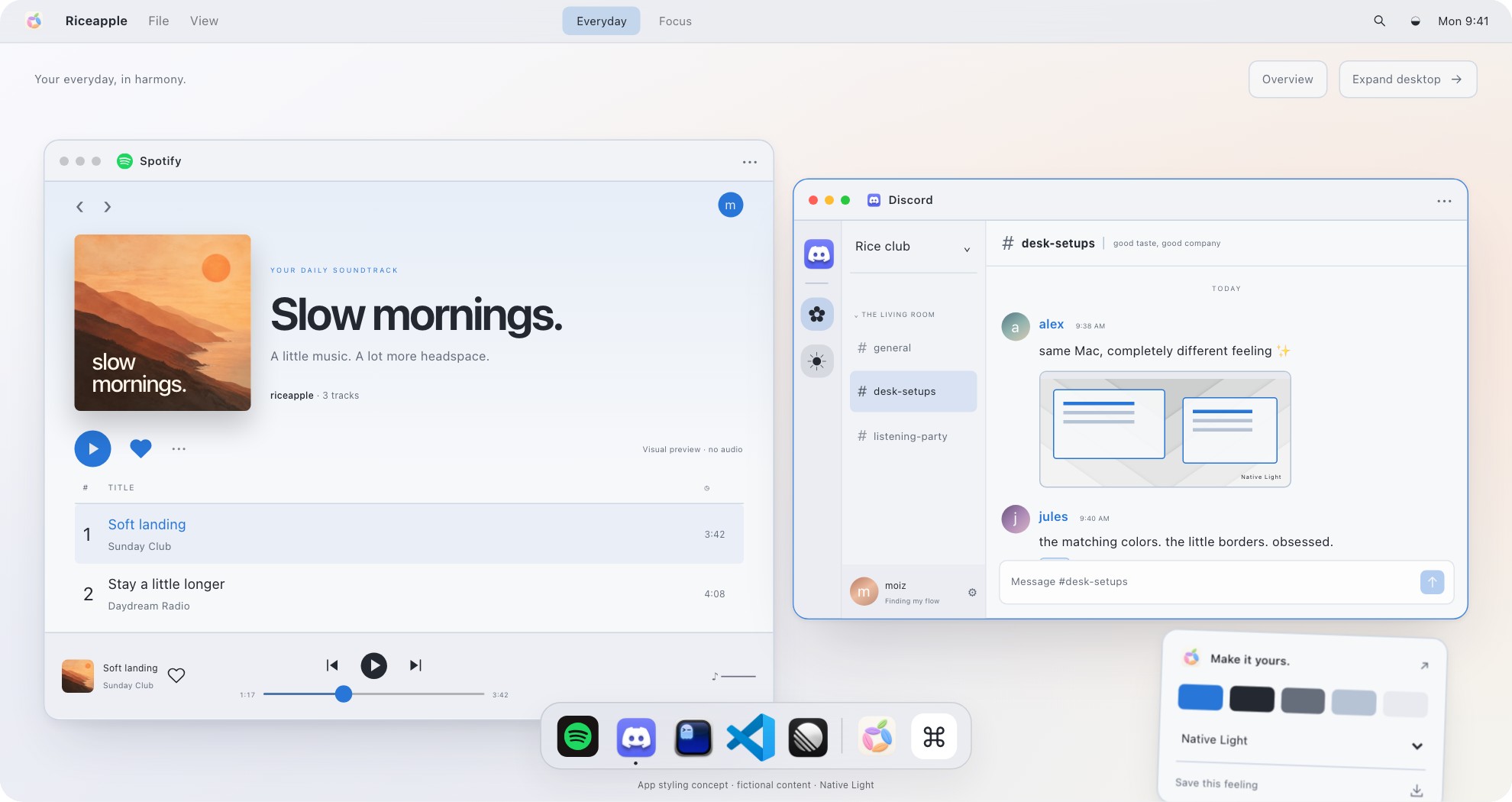
From the Riceapple playground: real preview components, sample content. This is visual inspiration, not a screenshot of a modified Discord installation or the exact recipe below.
View full-size preview (opens in a new tab) · Explore the app previews#292638#645A86An editorial color pair to try in the Nitro custom-theme editor. Start with a dark palette and restrained intensity; check actual text contrast. This is not an official preset or a tested accessibility combination.
Start with the free appearance controls
Open Discord and click the cogwheel beside your avatar. Choose Appearance, then try Light, Ash, Dark, or Onyx. Prefer automatic switching? Use Sync with computer. In Light, the optional Dark Sidebar keeps navigation dark while conversations stay light.
Choose by the room and the rest of your desktop, not by the theme name. Put Discord beside your editor or task app. A very dark chat window can feel disconnected beside a bright workspace; a gray base may sit more comfortably between them. This is visual preference, so keep the one you enjoy reading.
Before changing anything else, note your existing theme and spacing values. A quick settings screenshot gives you a reference if the experiment gets busy.
Build a custom Discord theme with Nitro
Discord's appearance documentation describes an official custom-theme editor. It requires Nitro; the built-in default themes above are available without it. Non-Nitro desktop users can preview color themes before deciding whether they want the extra customization.
A hex entry is a starting ingredient, not a promise that every surface will render that exact color. Judge the actual chat, including muted text, mentions, and links.
Open User Settings → Appearance → Theme.
Under Color Themes, select Custom Theme.
Pick a Dark or Light palette as your base.
Choose a color with the picker, or enter a hex value.
Use Add Color if you want a gradient. Discord supports up to five colors; two is a calmer starting point.
Adjust Gradient Direction once you have at least two colors, then tune Color Intensity.
Check the preview and select Apply.
Three palette recipes to try
These are our suggested color pairs, not official Discord presets or tested accessibility combinations.
Quiet lavender: start with `#292638` and `#645A86` in a dark palette. Keep intensity restrained. This works as a direction for a cool, soft desktop without making the entire window bright purple.
Forest desk: try `#202B27` and `#527A65`. Pair it with a simple green or neutral wallpaper. Let the wallpaper carry the texture while Discord carries the color.
Warm paper: choose a light palette and try `#E9DFCF` with `#D5BFA8`. Compare it against stock Light before committing; if the warm tint makes small labels harder to read, reduce intensity or return to the default.
You don't have to use every available gradient stop. A coordinated setup needs a repeatable color decision more than a complicated gradient. Our Mac setup ideas guide helps you make that decision across the desktop.
Tune spacing separately from color
Appearance has UI Density choices for Compact, Default, and Spacious. That changes surrounding interface spacing; it does not control message density.
For conversations, look under Message Spacing → Chat Message Display. Compact removes user icons for a denser view. Keep Default if avatars help you follow a conversation.
Then adjust one slider at a time. Chat Font Scaling changes chat text. Zoom Level changes the whole interface, and browser Discord uses the browser's zoom controls. Message Group Spacing changes the separation between messages.
Open a channel you actually read. Can you distinguish replies, spot a link, and scan a long message without leaning toward the screen? If not, increase text size or spacing before adding another color. The prettiest screenshot is a poor trade if it makes daily reading harder.
Check mobile and keep an undo path
On mobile, open your avatar or You tab, then the cogwheel and Appearance. Discord's help currently lists Light, Dark, Midnight, and Automatic there; naming and rendering can differ from desktop.
According to Discord's theme guide, custom themes are created on desktop, while mobile can preview and apply them. Sync across clients controls whether theme choices carry across devices. Turn it off if your phone needs a different appearance.
To return to stock, choose a default theme in Appearance. The custom editor's Reset restores the previous custom theme; it is not a reset for every spacing setting. Restore your recorded spacing values separately.
Do you need BetterDiscord or Vencord?
This recipe doesn't use either. Tutorials may recommend modified clients, but those are outside Discord's supported appearance settings. Discord's terms prohibit unauthorized software that modifies the service. That is a different decision from selecting an official custom color; we don't make claims about ban rates or enforcement.
A few questions
Can I rice Discord without Nitro?
Yes. Use default themes, optional Dark Sidebar in Light, and available spacing and text controls. Applying official custom color themes requires Nitro.
Will a desktop theme look identical on my phone?
Not necessarily. Discord documents differences between clients, even with Sync across clients enabled.
Can Riceapple apply this theme to Discord?
The Riceapple website is a styling playground. Its Discord scene is a preview, not a control for your installed app. Make real changes in Discord’s own settings.
Sources and scope
Researched from the sources below on September 12, 2026. The palette is our suggested starting point. Instructions are documentation-based; we haven’t claimed a hands-on test of your installed app version. Menus and availability can change.
Bring the rest of your Mac along
Use our Mac ricing guide to think through your desktop, then browse light, dark and warm setup ideas. The Riceapple playground lets you compare coordinated looks with sample windows. It does not apply a theme to Discord.